
Reputation
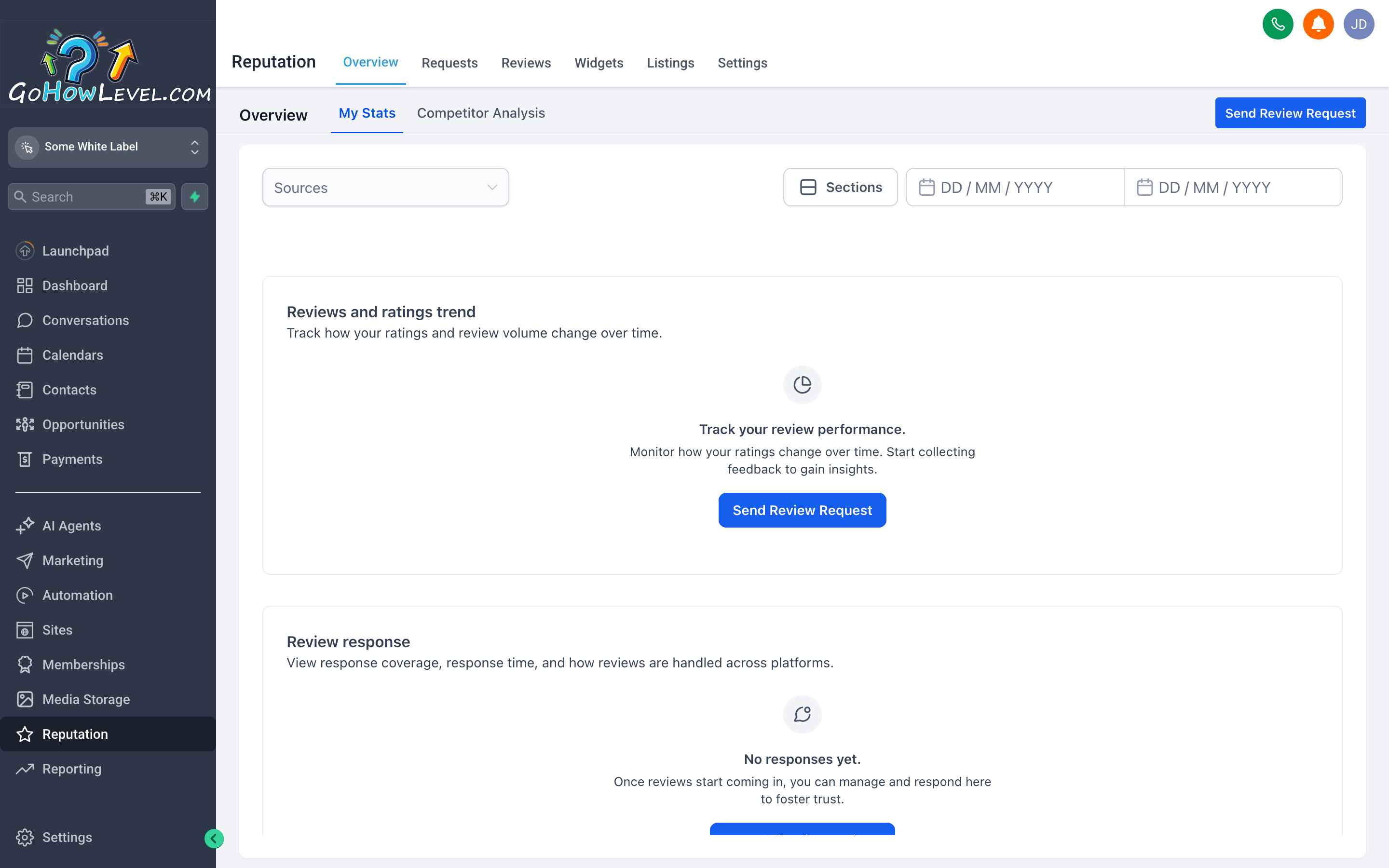
The Reputation overview gives you your star rating, review volume, and recent activity across all connected platforms in one place — no logging into Google or Facebook separately.
Your online reputation is often the very first thing a potential customer looks at before deciding whether to call you. A strong review profile builds immediate trust; a thin one — even if your work is excellent — raises doubt. The Reputation section of your CRM helps you stay ahead of this by giving you one place to monitor reviews, send requests to happy customers, respond to feedback, and keep your business listings accurate.
The overview dashboard
Section titled “The overview dashboard”When you open Reputation from the left navigation, the first screen is your overview. Here you’ll see:
- Your overall star rating aggregated across connected review platforms
- Total review count — the cumulative number of reviews you’ve received
- A platform breakdown showing how you’re rated on each connected source (such as Google and Facebook)
- A recent reviews feed with the latest incoming feedback
Use this screen as your morning check-in. A quick glance tells you if anything new came in overnight, whether your average rating shifted, and whether there’s a review that needs a response.
Sending review requests
Section titled “Sending review requests”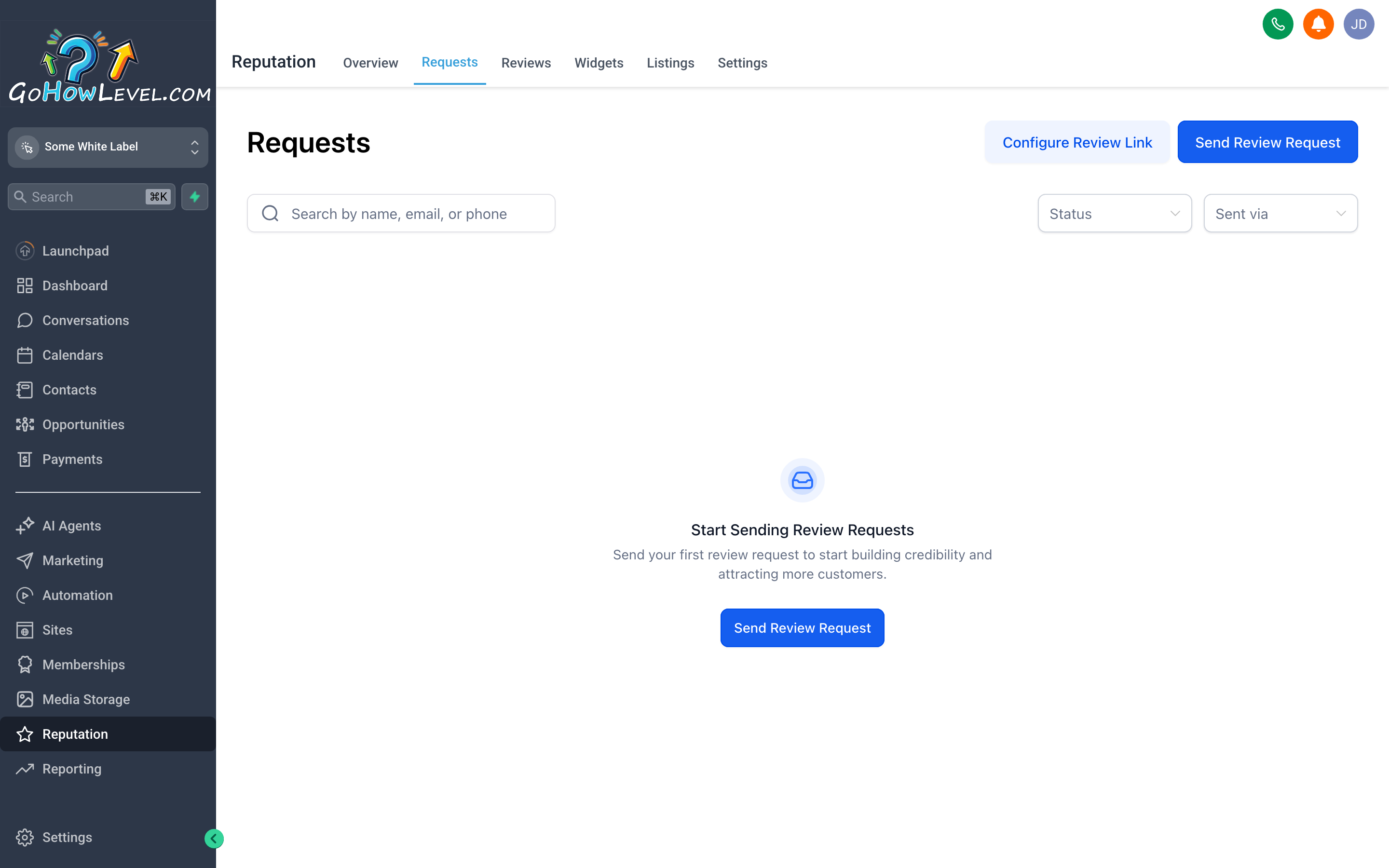
Sending a review request takes about thirty seconds — search for the contact, choose SMS or email, and send. The contact gets a direct link to leave their review.
Proactively asking satisfied customers to leave a review is the single most effective thing you can do to grow your online reputation. Most happy clients simply don’t think to leave a review unless someone asks. Here’s how to send a request:
- From the Reputation screen, click the Requests tab or Send Review Request button, depending on your layout.
- In the Contact search field, type the name, phone number, or email of the customer you want to reach. Select them from the results. If they aren’t in your contact list yet, add them to your CRM first.
- Choose your delivery channel — SMS or Email. SMS typically gets a higher open rate and faster response, but email is useful if you have customers who prefer it or if you don’t have a mobile number on file.
- Review the message preview if one is shown. The message will include a direct link to your review page on the selected platform.
- Click Send. The request goes out immediately and is logged on the contact’s record.
Monitoring and replying to reviews
Section titled “Monitoring and replying to reviews”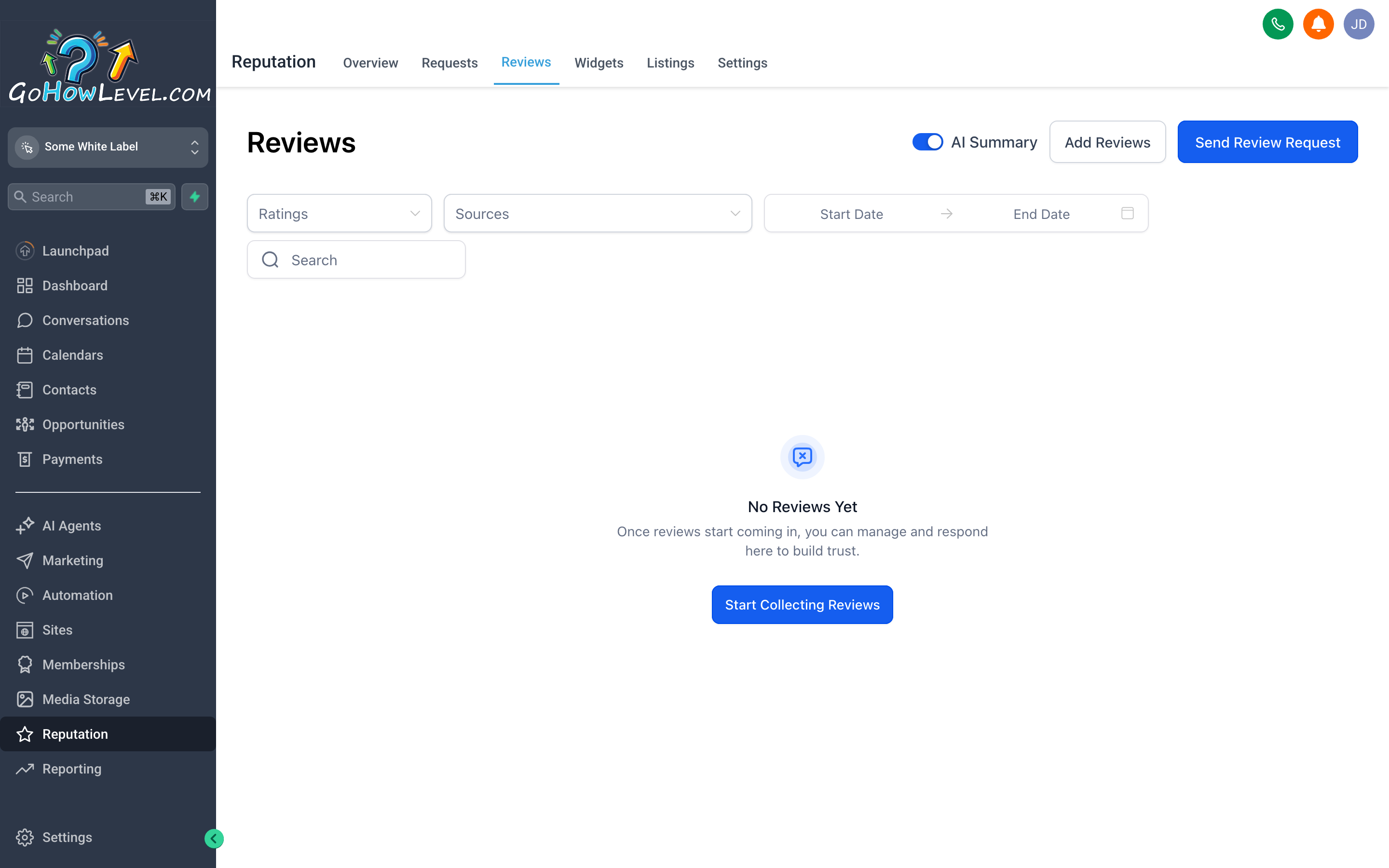
The Reviews screen shows every review that’s come in from your connected platforms — read them, spot trends, and reply without leaving your CRM.
Open the Reviews tab to see your full review feed. Each entry shows the reviewer’s name, their star rating, the platform the review came from, when it was posted, and the full review text.
Reading the feed
Section titled “Reading the feed”Scroll through recent reviews to:
- Spot patterns in what customers praise most (great for knowing what to emphasize in your marketing)
- Catch any negative feedback early before it compounds
- Track whether your average rating is trending up or down over time
Replying to reviews
Section titled “Replying to reviews”For platforms that support replies (Google is the most common), you’ll see a Reply field beneath each review. Click it, type your response, and submit. A few principles for effective replies:
- Reply to every review, positive and negative. A brief thank-you on a five-star review shows other readers that you’re attentive. A thoughtful response to a negative review shows you take feedback seriously.
- Keep negative replies calm and solution-focused. Don’t argue publicly. Acknowledge the experience, apologize where appropriate, and offer to resolve it offline.
- Respond promptly. Reviews left without a response for weeks signal to potential customers that you’re not engaged.
Business listings management
Section titled “Business listings management”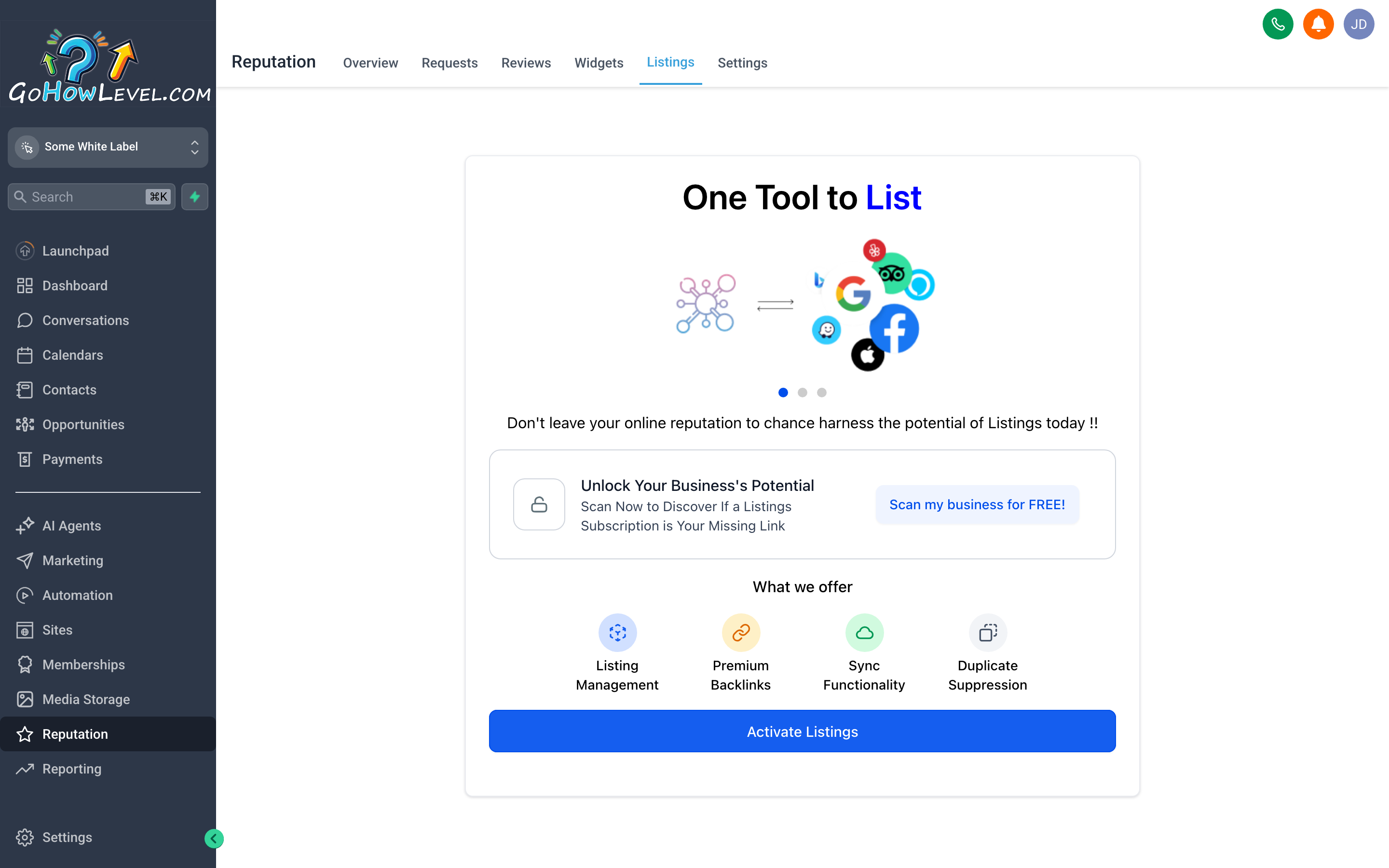
The Listings screen shows your business profile across major directories and flags any information that’s inaccurate or missing — inconsistent listings quietly hurt your search visibility.
Open the Listings tab to see your business profile across major online directories — places like Google, Bing, Yelp, Apple Maps, and others, depending on your account’s configuration.
Why listings matter
Section titled “Why listings matter”Search engines use the consistency of your business information across directories as a signal of legitimacy. If your address is formatted differently on three different directories, or your phone number is out of date on two of them, search engines lose confidence in your data — and your local search rankings can suffer as a result.
What to check
Section titled “What to check”The listings screen will flag any directories where your information:
- Is missing — your business isn’t listed at all
- Is inaccurate — the address, phone number, website, or business name doesn’t match your current details
- Is incomplete — required fields like business hours are blank
Keeping listings current
Section titled “Keeping listings current”If your account’s listing management integration supports direct updates, you can push corrected information out from inside your CRM rather than logging into each directory separately. Look for an Update or Sync option next to any flagged listing.