
AI Agents
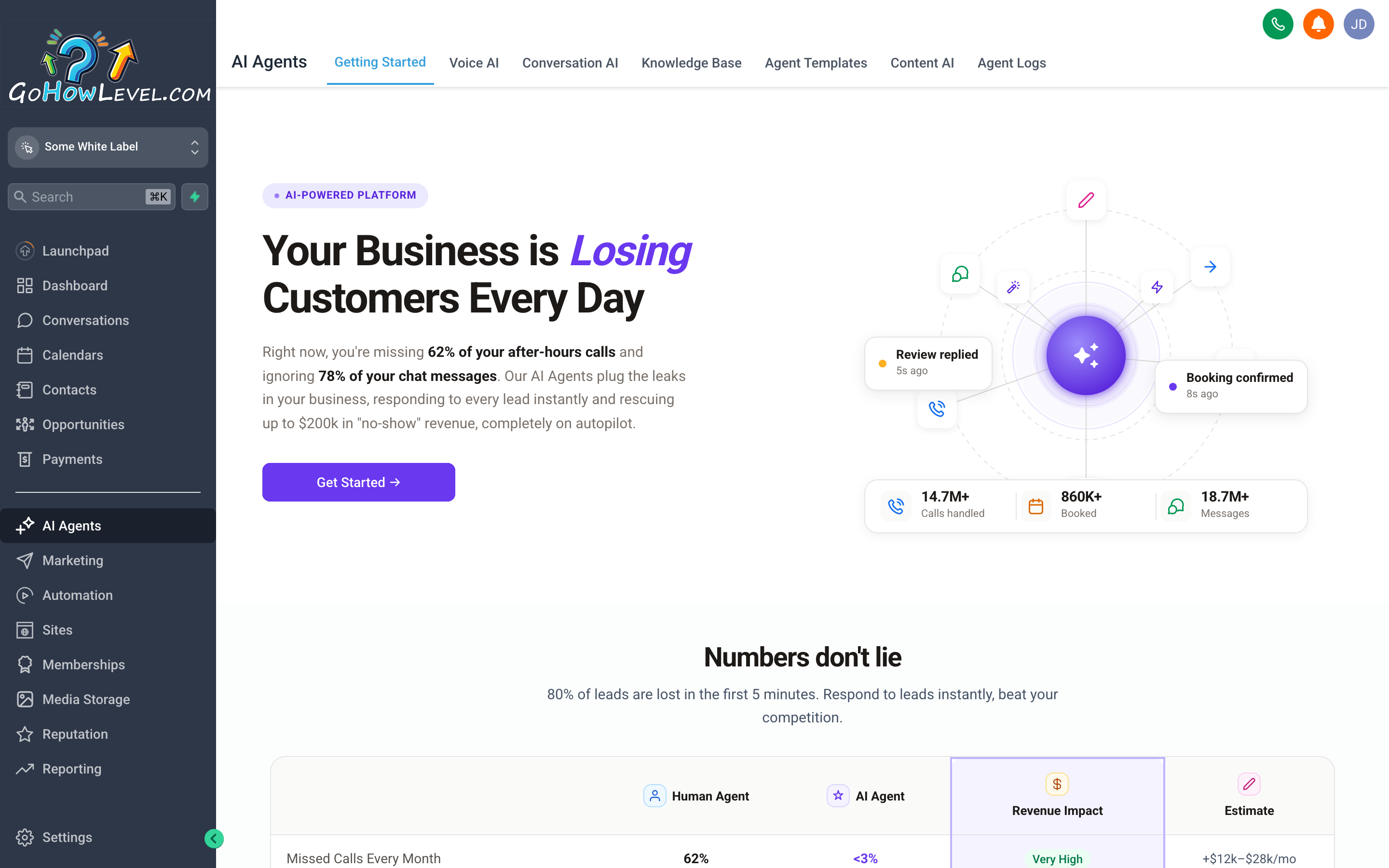
The AI Agents screen is your control center for every automated assistant in your account — you can see what’s active, what’s in test mode, and jump into the settings for each one.
Your CRM includes two distinct AI assistants: Conversation AI (for text-based channels like SMS, live chat, and messaging apps) and Voice AI (for inbound phone calls). Together they act as a first line of contact — available 24/7, consistent in tone, and smart enough to book appointments and answer common questions before a human ever needs to step in.
Used thoughtfully, these tools mean leads get an instant response at 2 a.m., routine questions never pile up in your inbox, and your team’s time is reserved for conversations where a human touch genuinely matters.
Getting started with AI Agents
Section titled “Getting started with AI Agents”What each agent type does
Section titled “What each agent type does”| Agent | Channel | Primary use cases |
|---|---|---|
| Conversation AI | SMS, web chat, Facebook/Instagram DMs, email | Auto-respond to inbound messages, qualify leads, answer FAQs, guide contacts to book appointments |
| Voice AI | Inbound phone calls | Answer calls, collect caller info, book appointments, route to the right team member |
Both agents can be configured independently. You might run Conversation AI on your main phone number’s SMS thread but leave Voice AI turned off — or vice versa. You’re in full control of what each one handles.
Navigating to AI Agents
Section titled “Navigating to AI Agents”- Click AI Agents in the left navigation (it may appear under a top-level AI or Automation section depending on your account layout).
- The overview screen shows the two agent types — Conversation AI and Voice AI — along with their current status (Active, Test Mode, or Off).
- Click either card to open its settings and configuration.
Conversation AI
Section titled “Conversation AI”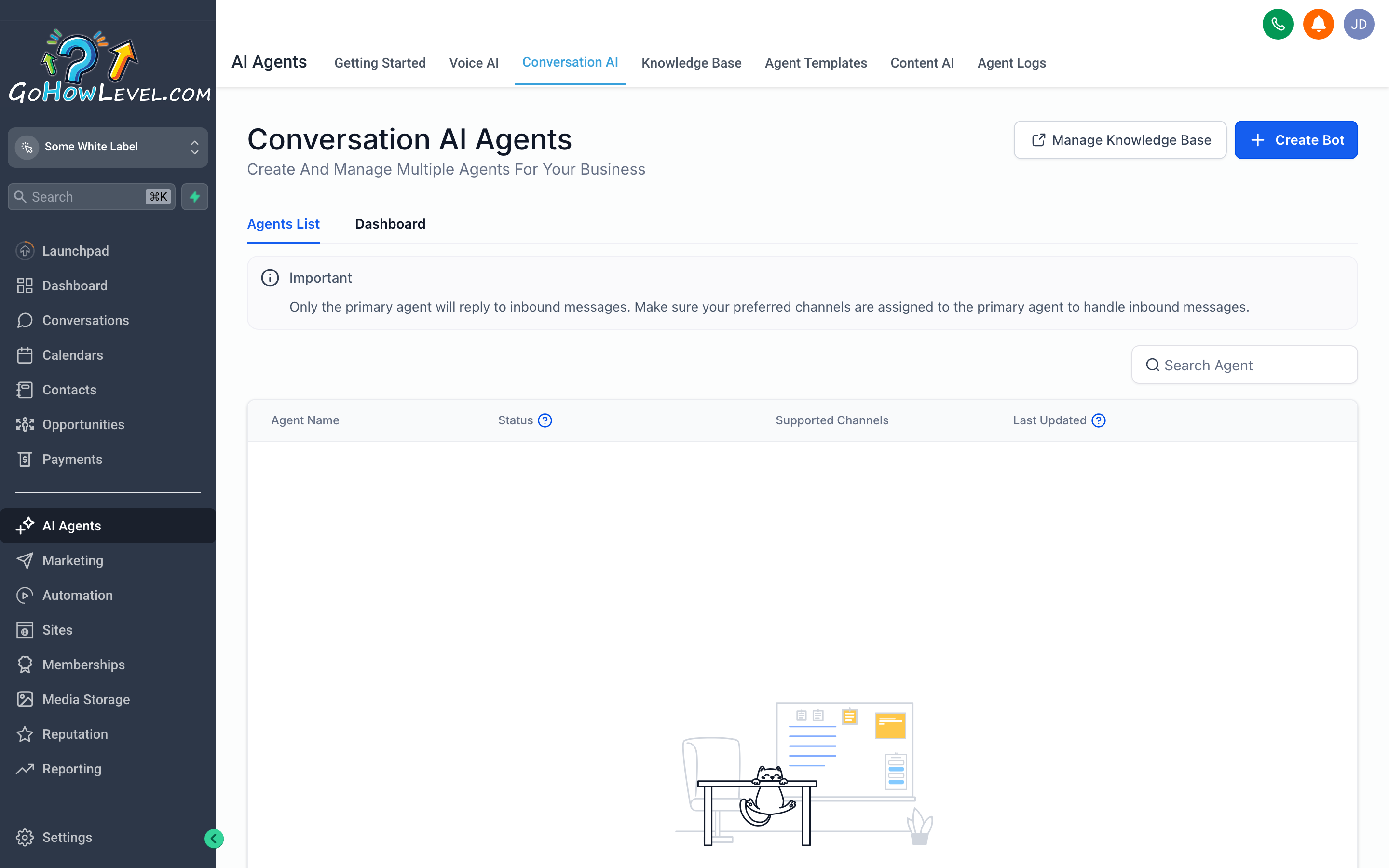
Conversation AI’s settings screen is where you define the bot’s persona, feed it your knowledge base, and choose which channels it’s allowed to respond on — all before flipping it live.
Conversation AI monitors your inbound text-based messages and jumps in to respond automatically when a real team member hasn’t replied within a set window — or instantly, if you prefer. It can handle the opening exchange of any conversation: answering a question, collecting a name and email, or walking a contact through booking an appointment.
How Conversation AI works
Section titled “How Conversation AI works”When a new message arrives on a channel where Conversation AI is active:
- The AI reads the message and checks it against its instructions and knowledge base.
- It generates a response in the persona and tone you’ve defined.
- If the contact’s question leads toward booking an appointment, the AI can surface available slots and complete the booking — without any human in the loop.
- If the conversation reaches a point outside the AI’s scope (a billing dispute, a complex technical question, an upset contact), it flags the conversation for human review and can notify your team via a workflow or notification.
Setting up Conversation AI
Section titled “Setting up Conversation AI”Define the bot’s persona and instructions
Section titled “Define the bot’s persona and instructions”- Open Conversation AI from the AI Agents screen.
- Under Bot Name, enter how the assistant should introduce itself — for example, “Maya” or “the scheduling assistant.”
- In the Instructions or System Prompt field, describe the bot’s role in plain language:
- What it’s there to help with.
- Topics it should not engage with (politics, personal advice, competitor questions).
- The tone it should use (friendly and professional, concise, etc.).
- Set the Response Delay if you want the AI to pause briefly before replying — a short delay (30–60 seconds) can make responses feel less robotic.
Build the knowledge base
Section titled “Build the knowledge base”The knowledge base is what Conversation AI draws on when answering questions. A well-stocked knowledge base is the difference between an AI that gives accurate, helpful answers and one that guesses.
- Scroll to the Knowledge Base section.
- Add content in any combination of:
- Text entries — paste in FAQs, service descriptions, pricing, hours, or any information contacts regularly ask about.
- Website URLs — the AI can scrape and index content from your website pages.
- Documents — upload PDFs or text files (service guides, menus, procedure docs).
- After adding content, click Train (or Save & Train). The system processes the content and makes it searchable by the AI.
Choose which channels it responds on
Section titled “Choose which channels it responds on”- Scroll to the Channels section.
- Toggle on any channel where you want the AI to be active: SMS, Live Chat, Facebook Messenger, Instagram DM, or others your account supports.
- Set the Trigger condition for each channel:
- Always respond — the AI replies to every inbound message immediately.
- Respond if no reply within X minutes — the AI kicks in only after your team hasn’t responded in the set window. This is the safer starting point.
Enable test mode first
Section titled “Enable test mode first”Before going live, switch the agent to Test Mode:
- In Conversation AI settings, find the Mode toggle and select Test.
- Send a test message to the channel from a personal phone or a test contact.
- Review the AI’s response. Does it answer correctly? Is the tone right? Does it handle edge cases gracefully?
- Adjust instructions and knowledge base entries based on what you observe.
- Repeat the test until you’re confident in the responses, then switch to Active.
Human handoff
Section titled “Human handoff”Conversation AI knows when to step back. You can configure handoff triggers — specific phrases or conditions that tell the AI to stop responding and alert a human:
- Contact says “I want to talk to a real person.”
- Sentiment appears negative or the contact seems frustrated.
- A question falls outside the knowledge base entirely.
When a handoff is triggered, the AI can add a tag to the contact, send an internal notification to your team, or move the conversation into a specific pipeline — whichever workflow makes sense for your business.
Voice AI
Section titled “Voice AI”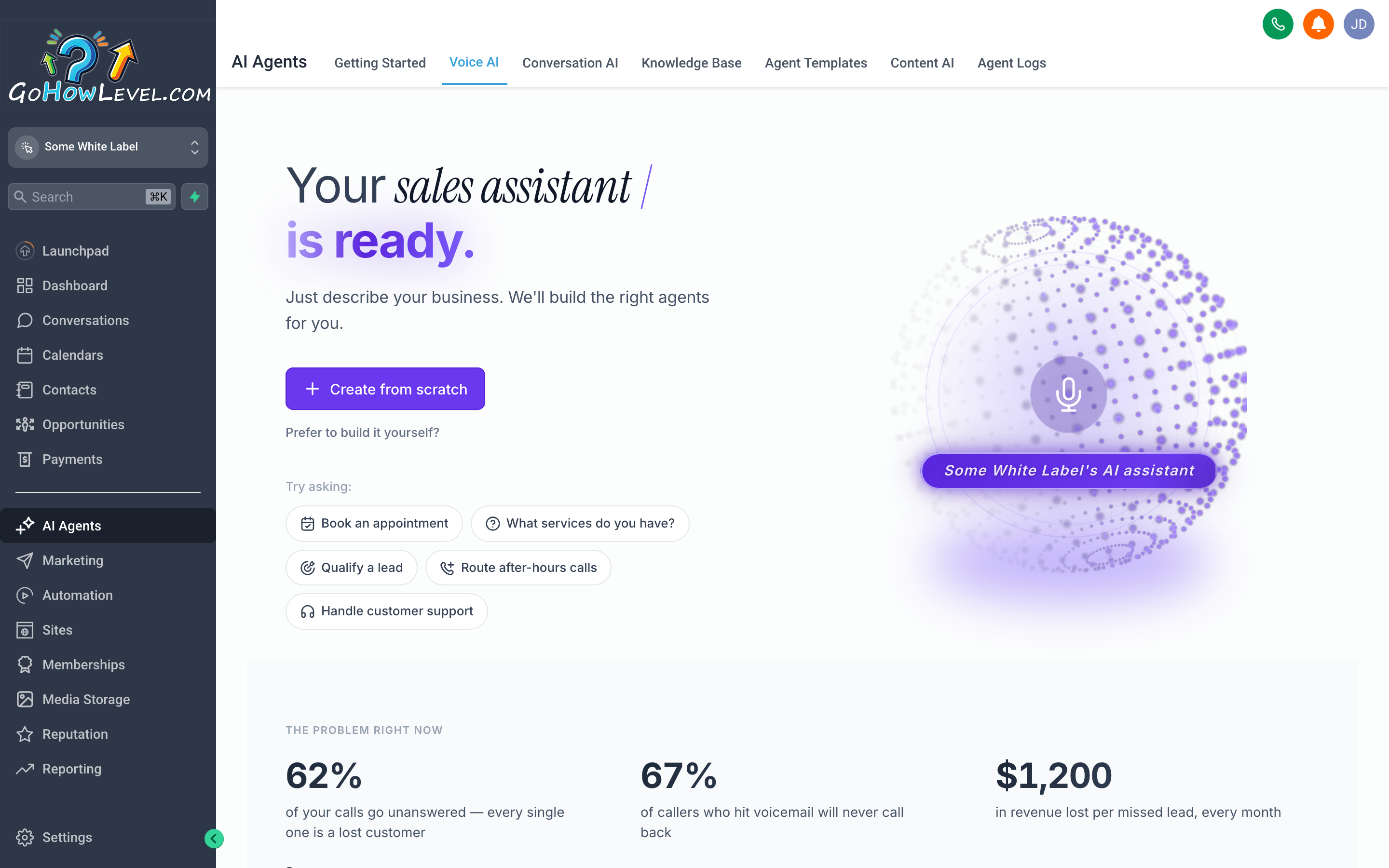
Voice AI’s settings let you choose a voice, script the opening greeting, define what the assistant can help with, and connect it to your calendar so it can book appointments live on the call.
Voice AI answers inbound phone calls the same way Conversation AI handles text — automatically, consistently, and around the clock. A caller rings your number, Voice AI picks up, greets them in a natural-sounding voice, collects information, answers questions, and — when the call is about scheduling — books the appointment directly.
How Voice AI works
Section titled “How Voice AI works”- An inbound call arrives on a phone number where Voice AI is enabled.
- The AI answers with your configured greeting.
- It listens to the caller’s response and uses speech recognition to understand their intent.
- Depending on what the caller needs, the AI answers questions (drawing from the same knowledge base as Conversation AI), books an appointment, or gathers information to pass along to your team.
- If the caller needs a human, Voice AI can transfer the call to a team member or voicemail, or offer a callback.
Setting up Voice AI
Section titled “Setting up Voice AI”Configure the voice and greeting
Section titled “Configure the voice and greeting”- Open Voice AI from the AI Agents screen.
- Under Voice, select from the available voice options. Listen to the preview clips — choose a voice that matches your brand’s tone.
- In the Greeting Script field, write what the AI says when it picks up. Keep it brief and friendly:
- Example: “Hi, thanks for calling. You’ve reached [Business Name]. I’m an AI assistant and I can help you schedule an appointment or answer questions — what can I help you with today?”
- Enable Speak slowly or adjust pace if your audience is likely to include older callers or non-native speakers.
Connect to your calendar
Section titled “Connect to your calendar”Voice AI can only book appointments if it knows your availability:
- Scroll to Appointment Booking.
- Select the Calendar you want Voice AI to use for scheduling (this must be an active calendar in your CRM).
- Set any booking constraints — minimum notice time, maximum days out, buffer between appointments.
- Save. Voice AI will now check real-time availability and confirm bookings live on the call.
Define what Voice AI handles and what it routes
Section titled “Define what Voice AI handles and what it routes”- In the Call Flow or Routing section, define the scenarios Voice AI will handle independently:
- General questions (hours, location, services).
- Appointment scheduling.
- Cancellation or rescheduling requests.
- Define the scenarios where it should transfer to a human or take a message:
- Billing or account questions.
- Complaints or escalations.
- Any request it can’t confidently fulfill.
- Set the Transfer Number — the phone number or team member extension calls are routed to when a human is needed.
Test Voice AI before going live
Section titled “Test Voice AI before going live”- Set the agent to Test Mode in its status toggle.
- Call the number from your own phone.
- Try multiple scenarios: ask a simple question, try to book an appointment, ask something the AI shouldn’t know, then ask to speak to a human.
- Take notes on anything that sounds wrong or unclear.
- Update the greeting, call flow, or knowledge base as needed, then test again.
- Switch to Active only when every scenario sounds right.
After a Voice AI call
Section titled “After a Voice AI call”Every call handled by Voice AI creates a record in your CRM:
- A call log with the date, time, duration, and caller number.
- A transcript of the conversation.
- Any contact data collected during the call (name, email, appointment time).
- The recording (if your account has call recording enabled).
These records appear on the contact’s timeline, so when a human team member follows up later, they can see exactly what the AI discussed.
Training, tuning, and ongoing improvement
Section titled “Training, tuning, and ongoing improvement”AI agents improve over time — but only if you actively tune them based on real conversations. Make it a habit to:
- Review flagged conversations — check any conversation where the AI handed off to a human. Was the handoff appropriate? Could the AI have handled it with better instructions?
- Update the knowledge base when you add a new service, change your hours, or adjust pricing. An outdated knowledge base leads to outdated answers.
- Watch for patterns — if the same question keeps triggering a handoff, the AI probably doesn’t have the right information. Add the answer to the knowledge base.
- Read the transcripts — both for Conversation AI and Voice AI, the transcripts reveal exactly how the AI is representing your business. Anything that sounds off is worth adjusting.